
October 2026
We've made chat in Chati more expressive, easier to use and better at keeping your attendees engaged. Your attendees can now react with emoji, format their messages and connect privately in a cleaner, faster private chat. And you have new ways to spotlight your staff and give your booth and webcast teams the data they need, without the extra setup.
🌟 What's New
Chat Reactions
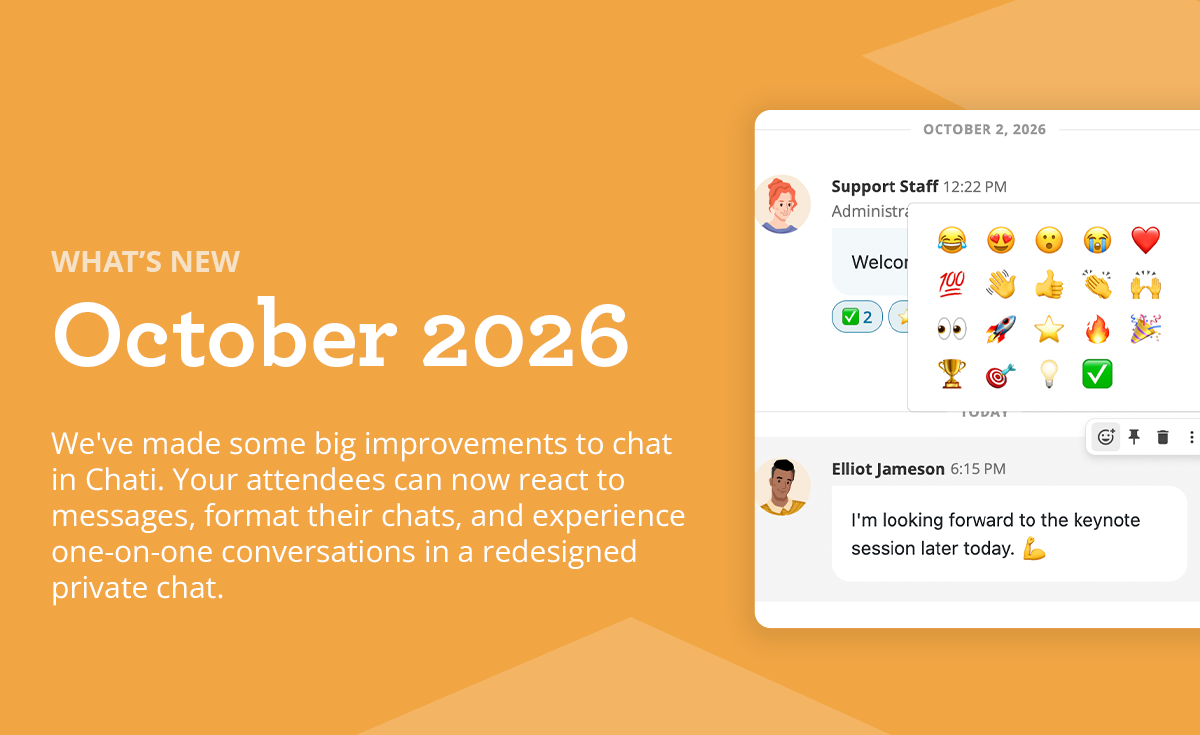
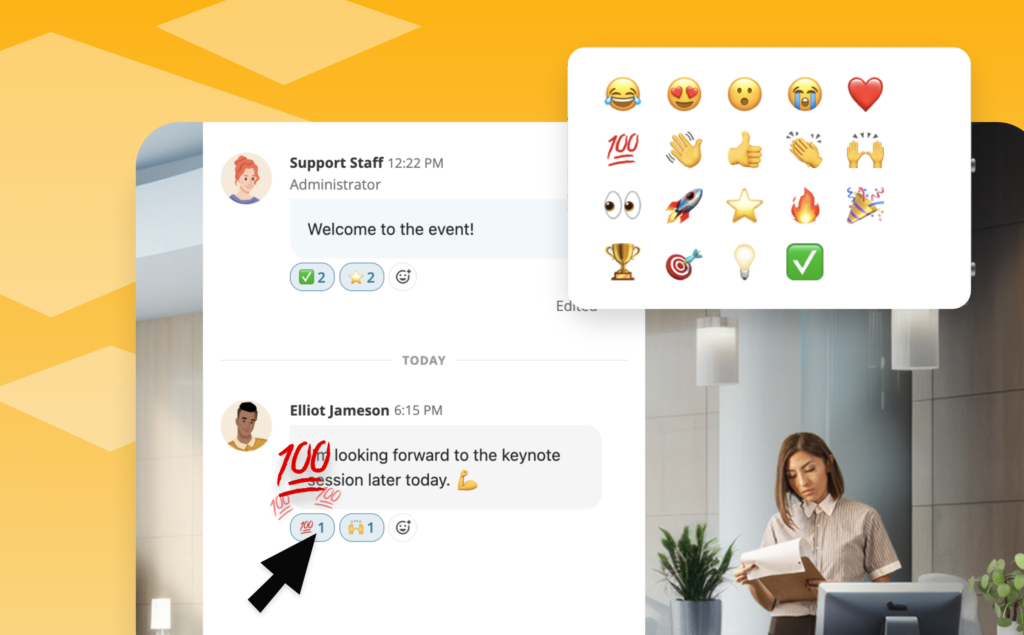
Attendees can now react to chat messages with emoji in event chat, session chat and private messages. Reactions are on by default, and organizers can turn them off per event in Event Settings > Options > Chat Options. Reaction activity also appears in the Event Chat Summary dashboard widget and in chat reports.
Chat Formatting
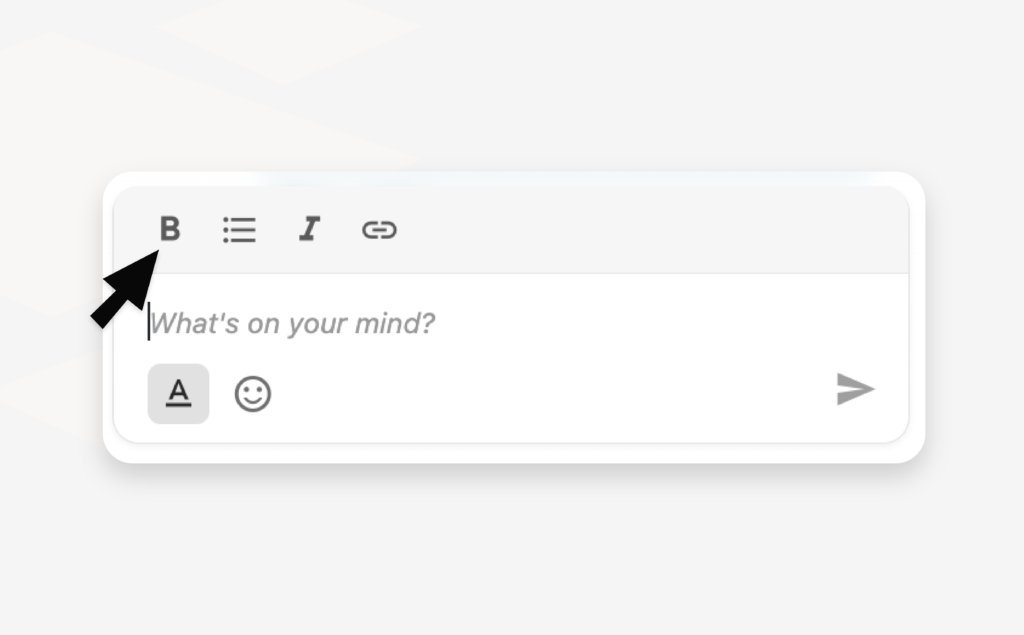
Messages can now include bold, italics, bulleted lists and links, along with proper line breaks. Formatting works in regular chat and in pinned messages, so announcements are much easier to read.
Redesigned Private Chat
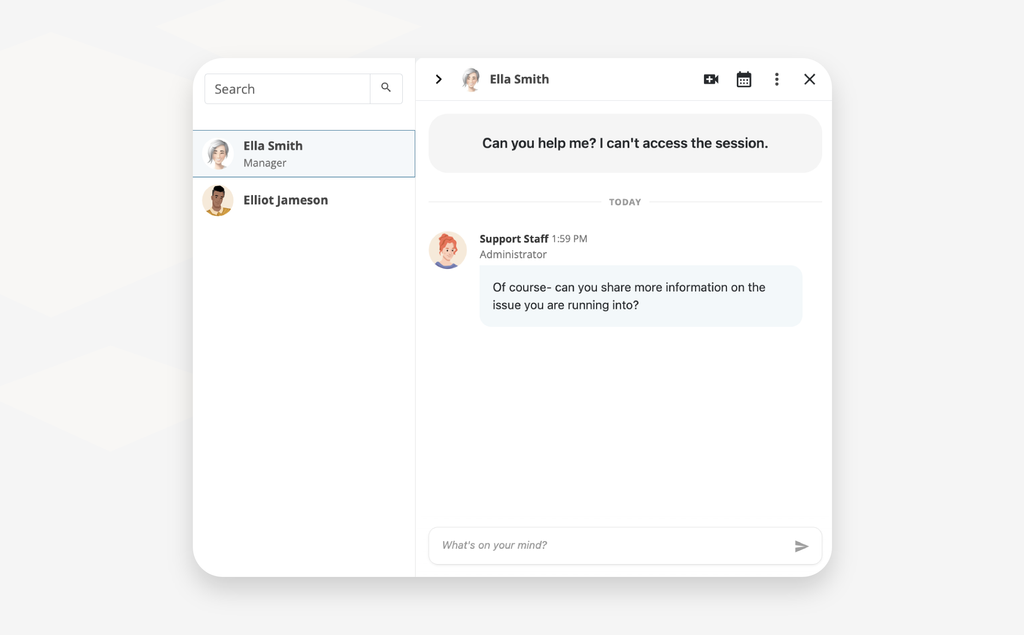
Private chat has a whole new layout. Your conversations are listed down the left side with the most recent at the top, and a search bar helps you find anyone fast. Quick actions let you schedule a meeting, view a profile or send a business card right from the conversation. Private video calls now let you choose your camera and microphone before you join, and the chat stays beside the call, collapsible when you want more room.
Updated Pinned Messages
Pinned messages now take up less space and keep the focus on the conversation. Pins appear one at a time so they're easy to flip through, and they tuck away as you scroll back through older messages. A Dismiss option shrinks them to a small "Pinned Messages" tag you can click to bring them back.
Event Staff
Organizers can now mark anyone with a staffing role as Event Staff, from event admins to booth and webcast staff. Staff get a Staff tag next to their name in event-wide group chats and in the Who's in the Event list, so attendees know exactly who to ask for help. Manage it in Event Settings > Event Staff.
"Is My Booth" and "Is My Webcast" Report Filters
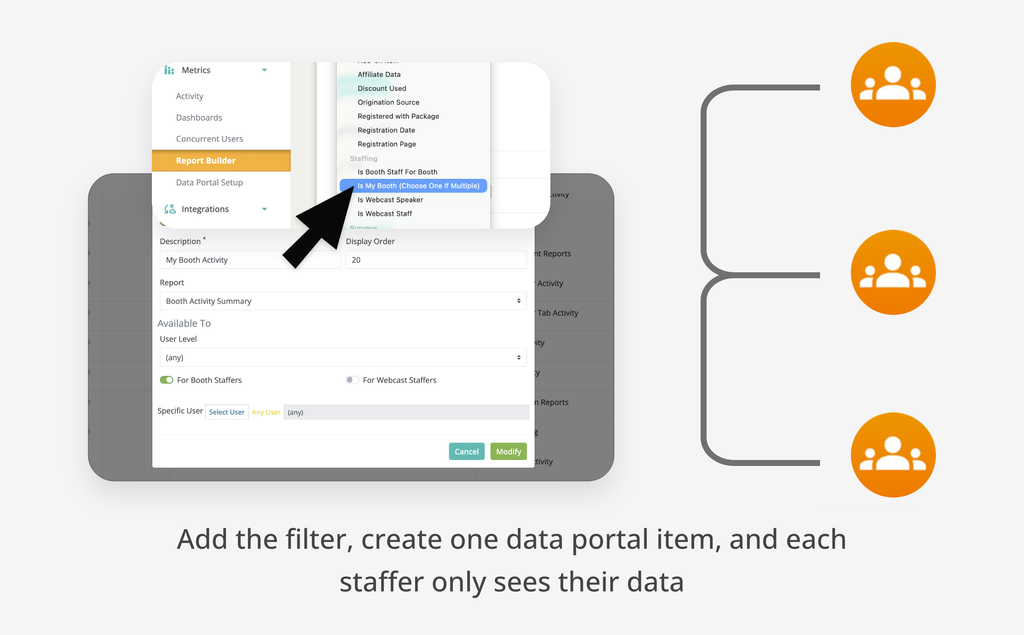
Build one report and share it with all of your booth or webcast staff, and each person sees only the data for the spaces they staff. Add the Is My Booth or Is My Webcast filter, add the report to the Data Portal once, and you're done. Staffers assigned to more than one space can choose which one to view. The filters are available on Booth Action Summary, Booth Activity Summary, Booth Handout Summary, Booth Visit Detail, Webcast Activity Summary, Webcast Poll Response Detail and Webcast View Detail.
Login Overlay Panel Template
A new login page template pairs a full-bleed photo background with a translucent side panel. It's available to select for your account's login page.
🛠 Updates to Existing Features
A Fresh Look for Chat
Chat has a cleaner, more modern look. Dates now appear as dividers between days, job titles show on messages, and a new More menu on each message lets you view a profile or send a business card. Moderators get a dedicated Moderator Tools section, and a slimmer message bar gives conversations more room, especially for inline chat.
Clearer Private Chat Requests
Chat invitations have a refreshed look, and the note you send to start a conversation now appears as an intro at the top of the thread. You'll also see clearer states while a request is waiting to be accepted, plus a friendly empty state in group chats that don't have messages yet.
Separate Zoom Webcast Types
Zoom now has two webcast types, so you can match the type to the kind of link you have. Choose the embed link type when you want your Zoom session to play right inside your Chati event, so attendees never leave the space. Choose the standard join link type for regular Zoom meeting links, which can't play inside Chati and will open in a new window.
More Improvements
- Handout modal size. When "Launch handout in modal" is on, you can now choose a modal size. Extra Large is still the default.
- Delete confirmation. Deleting a single chat message or pinned message now asks you to confirm first.
- Account login link. Copy your account login link straight from the top bar of the admin portal.
Have Questions or Feedback?
We'd love to hear what you think of the new chat experience. Try it out at your next event and send questions or feedback to support@chati.com.